

- Open the Monitoring page for an automation.
- Find completed runs that need review.
- Mark verdicts: Correct, Incorrect, or Nit.
- Use status to track what still needs fixing.
- Rerun the same input after a change.
- Close the review or mark it Won’t fix.
- Use Monitoring to check whether quality improves.
Before You Start
You need an automation with at least one completed run. It can be either a workflow or an agent. If you do not have any runs yet, start one from the automation card or the Run page: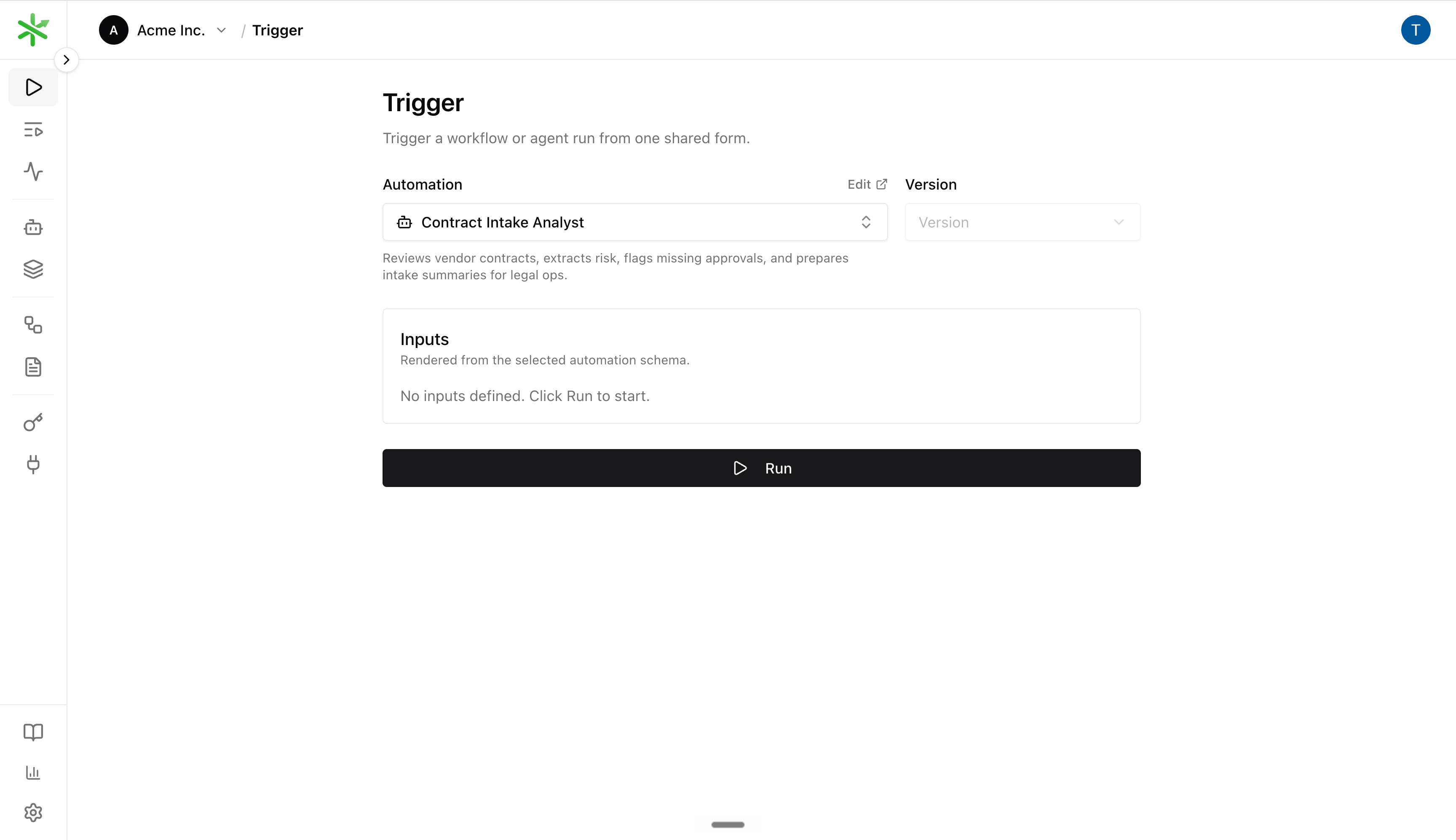
Start a run from the Trigger page when you need a fresh completed run to review.
1. Open Monitoring
From the automation card, choose Monitoring. The page opens with that automation selected. Monitoring starts with two questions:- Are completed runs being reviewed?
- Of the reviewed runs, how many are correct?
2. Open The Runs Queue
Click Review runs from Monitoring, or open Runs and filter to the automation. The queue should be scoped to completed runs for the same time range. Open a run in the detail pane. Start with runs that are recent, high-impact, or part of your sampling process. On the Runs page, use Sample to focus on a stable subset when volume is high.3. Decide The Verdict
Read the input, output, and any generated files. Then choose a verdict:- Correct when the output is acceptable.
- Incorrect when the output is wrong and should count as a quality failure.
- Nit when you want to leave feedback without counting the run as correct or incorrect.
4. Add Corrections When Useful
If the output is wrong, add the corrected output or corrected files. Corrections make the failure concrete: the next developer can see exactly what the run should have produced. Use corrections for important mistakes, not every tiny note. If the corrected case should become a regression test, promote the reviewed run into the dataset: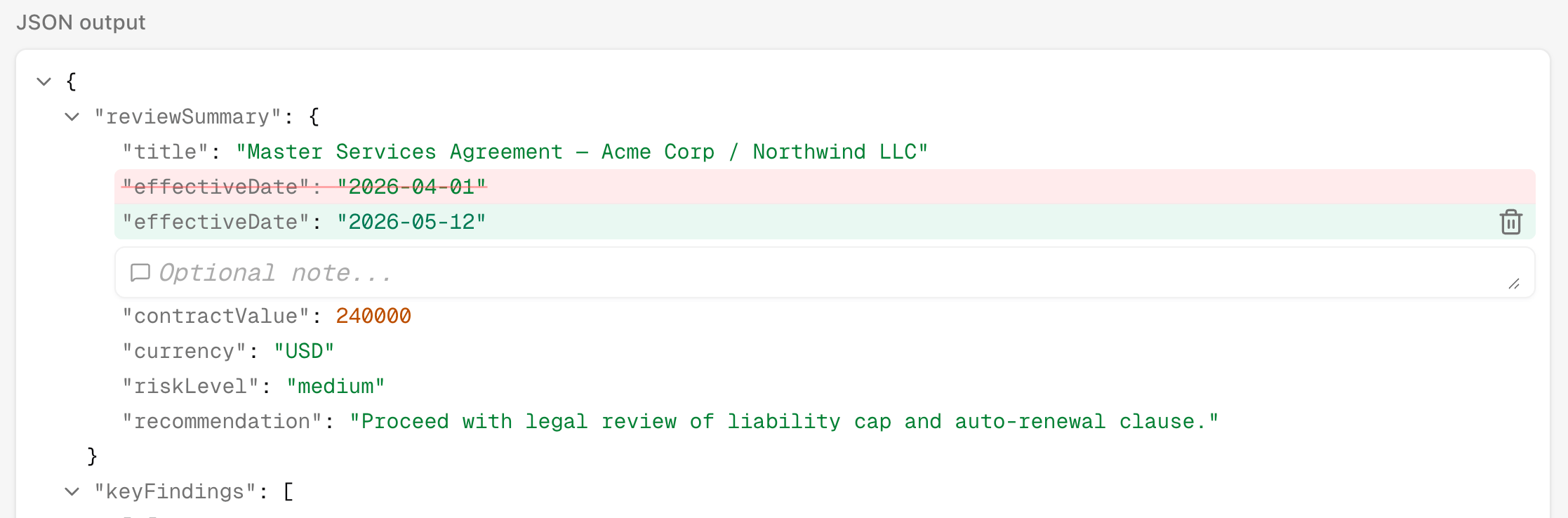
Click a field in the JSON output to set a corrected value inline, then save the review.
5. Use Status As The Fix Queue
Verdict says whether the run was right. Status says what the team should do next. Use statuses like this:- Open: needs work.
- Closed: fixed or resolved.
- Won’t fix: known issue, intentionally accepted.
- Mark a bad run Incorrect + Open.
- Fix the workflow prompt, schema, step logic, or agent source.
- Rerun the same input.
- Close the original review once the rerun proves the fix.
6. Rerun The Same Case
After changing the automation, rerun the reviewed case. Reruns keep the original input but execute the latest selected version, so you can compare before and after. From the dashboard, use the run’s rerun action. From the CLI:7. Check Monitoring Again
Return to Monitoring after a few reviewed runs. The Rolling reviewed accuracy chart should improve when fixes work; each point uses the rolling window of most recent reviewed runs ending at that date. The Review coverage by period chart shows whether you are reviewing enough runs to trust the trend.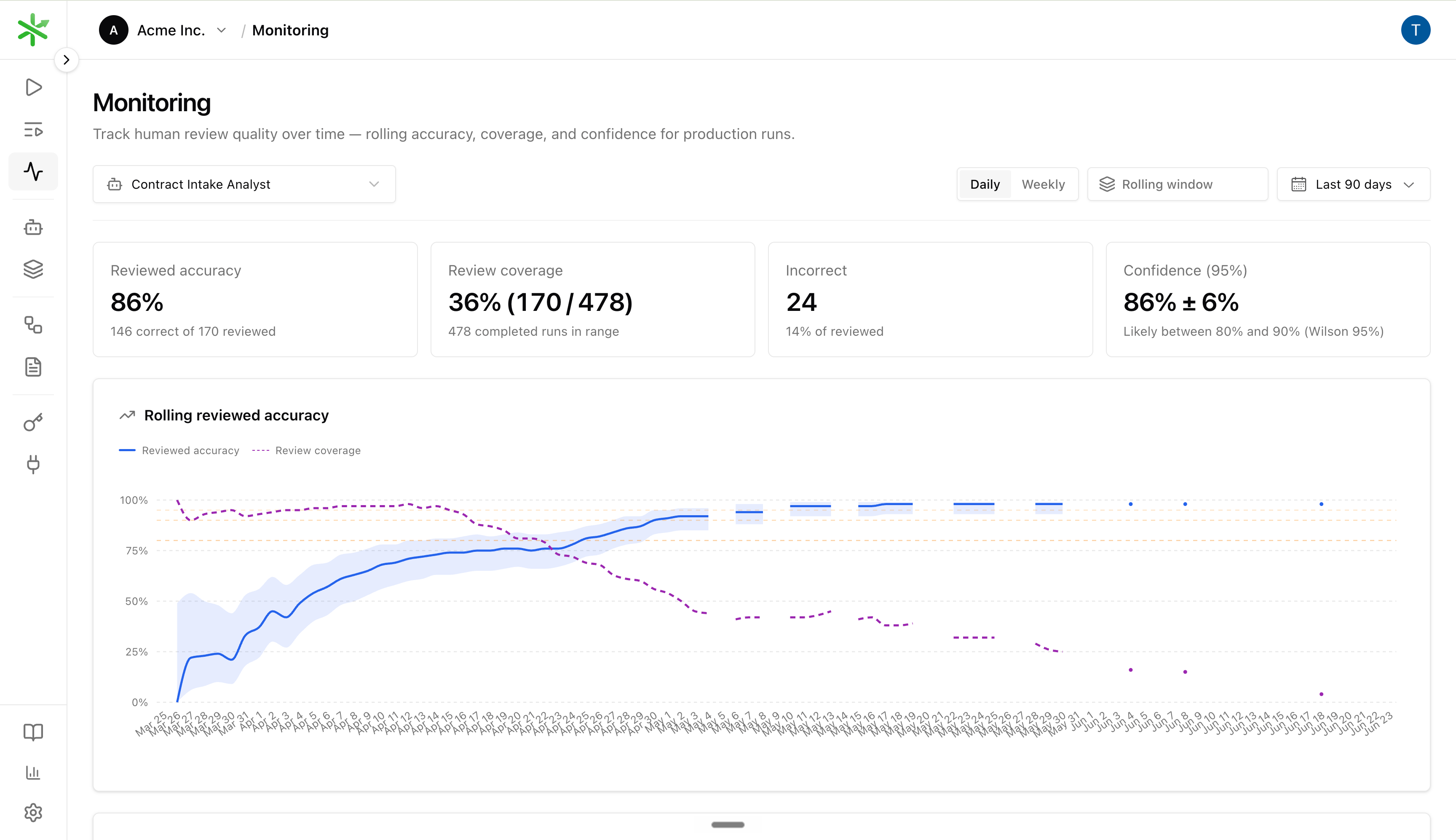
Monitoring after several reviewed runs: rolling accuracy, coverage line, and period breakdown.
- Accuracy rising: fixes are improving production quality.
- Coverage falling while accuracy is still low: you may be under-sampling; review more runs before trusting the trend.
- Coverage falling while accuracy is stable: often healthy — see Sampling.
- Many Incorrect reviews: prioritize fixes or add dataset coverage.
- Many Unreviewed runs: review a larger sample before trusting accuracy.
- Many Nits: reviewers are leaving feedback, but not making quality calls.