> ## Documentation Index
> Fetch the complete documentation index at: https://docs.eigenpal.com/llms.txt
> Use this file to discover all available pages before exploring further.
# Review production runs
> Review runs, track fixes with status, rerun the same inputs, and monitor quality over time.
This tutorial walks through the review loop for a workflow or agent that is
already producing runs.
You will:
1. Open the Monitoring page for an automation.
2. Find completed runs that need review.
3. Mark verdicts: Correct, Incorrect, or Nit.
4. Use status to track what still needs fixing.
5. Rerun the same input after a change.
6. Close the review or mark it Won't fix.
7. Use Monitoring to check whether quality improves.
For the concepts behind verdicts, statuses, and monitoring, read
[Reviews](/concepts/reviews) first.
## Before You Start
You need an automation with at least one completed run. It can be either a
[workflow](/concepts/workflows) or an [agent](/concepts/agents).
If you do not have any runs yet, start one from the automation card or the Run
page:
```bash theme={null}
eigenpal run agents.extract-invoice --input-file document=invoice.pdf
# or
eigenpal run workflows.extract-invoice --input-file document=invoice.pdf
```
 ## 1. Open Monitoring
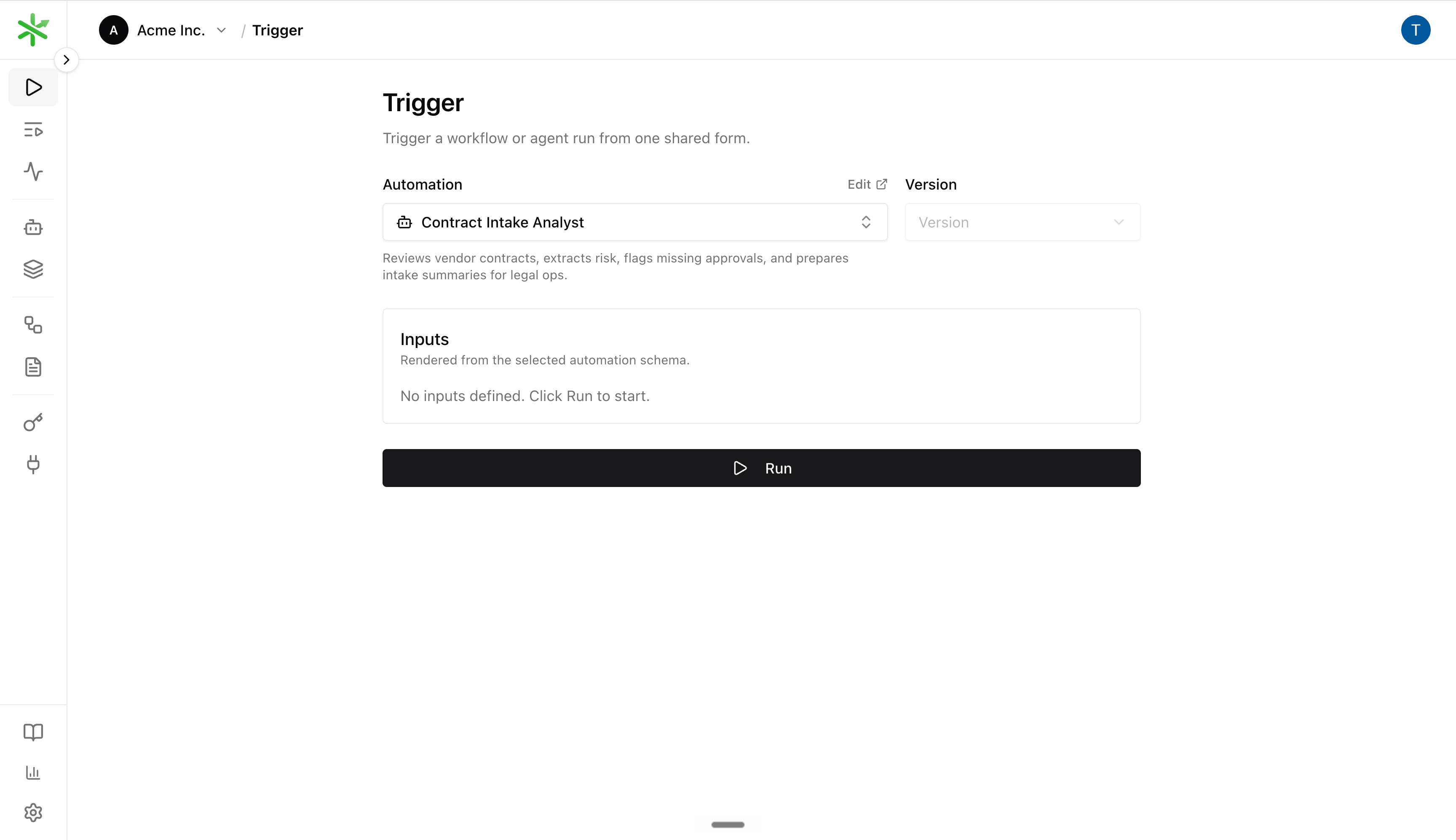
From the automation card, choose **Monitoring**. The page opens with that
automation selected.
Monitoring starts with two questions:
* Are completed runs being reviewed?
* Of the reviewed runs, how many are correct?
If there are no completed runs in the selected time range, use **Run
automation** to start one. If there are completed runs but no reviews yet, use
**Review runs** to jump to the filtered Runs page.
## 2. Open The Runs Queue
Click **Review runs** from Monitoring, or open Runs and filter to the
automation. The queue should be scoped to completed runs for the same time
range.
Open a run in the detail pane. Start with runs that are recent, high-impact, or
part of your [sampling](/concepts/reviews#sampling) process. On the Runs page,
use **Sample** to focus on a stable subset when volume is high.
## 3. Decide The Verdict
Read the input, output, and any generated files. Then choose a verdict:
* **Correct** when the output is acceptable.
* **Incorrect** when the output is wrong and should count as a quality failure.
* **Nit** when you want to leave feedback without counting the run as correct or
incorrect.
Add a note whenever the verdict is not obvious. A good review note says what the
automation missed and what the expected behavior should be.
```text theme={null}
Incorrect: Missed the VAT ID in the supplier footer.
Nit: Output is correct, but the risk summary is too verbose.
Correct: Matches the source contract.
```
Use the status dropdown and thumbs-up / thumbs-down controls in the Output
panel header. Add notes in the **Notes** field below the JSON output.
You can also review from the CLI:
```bash theme={null}
eigenpal runs reviews update \
--verdict incorrect \
--status open \
--note "Missed the VAT ID in the supplier footer"
```
## 4. Add Corrections When Useful
If the output is wrong, add the corrected output or corrected files. Corrections
make the failure concrete: the next developer can see exactly what the run
should have produced.
Use corrections for important mistakes, not every tiny note. If the corrected
case should become a regression test, promote the reviewed run into the
dataset:
```bash theme={null}
eigenpal runs promote --name missed-vat-id
```
That turns the reviewed run into a dataset example you can cover with
[evaluators](/concepts/evals).
## 1. Open Monitoring
From the automation card, choose **Monitoring**. The page opens with that
automation selected.
Monitoring starts with two questions:
* Are completed runs being reviewed?
* Of the reviewed runs, how many are correct?
If there are no completed runs in the selected time range, use **Run
automation** to start one. If there are completed runs but no reviews yet, use
**Review runs** to jump to the filtered Runs page.
## 2. Open The Runs Queue
Click **Review runs** from Monitoring, or open Runs and filter to the
automation. The queue should be scoped to completed runs for the same time
range.
Open a run in the detail pane. Start with runs that are recent, high-impact, or
part of your [sampling](/concepts/reviews#sampling) process. On the Runs page,
use **Sample** to focus on a stable subset when volume is high.
## 3. Decide The Verdict
Read the input, output, and any generated files. Then choose a verdict:
* **Correct** when the output is acceptable.
* **Incorrect** when the output is wrong and should count as a quality failure.
* **Nit** when you want to leave feedback without counting the run as correct or
incorrect.
Add a note whenever the verdict is not obvious. A good review note says what the
automation missed and what the expected behavior should be.
```text theme={null}
Incorrect: Missed the VAT ID in the supplier footer.
Nit: Output is correct, but the risk summary is too verbose.
Correct: Matches the source contract.
```
Use the status dropdown and thumbs-up / thumbs-down controls in the Output
panel header. Add notes in the **Notes** field below the JSON output.
You can also review from the CLI:
```bash theme={null}
eigenpal runs reviews update \
--verdict incorrect \
--status open \
--note "Missed the VAT ID in the supplier footer"
```
## 4. Add Corrections When Useful
If the output is wrong, add the corrected output or corrected files. Corrections
make the failure concrete: the next developer can see exactly what the run
should have produced.
Use corrections for important mistakes, not every tiny note. If the corrected
case should become a regression test, promote the reviewed run into the
dataset:
```bash theme={null}
eigenpal runs promote --name missed-vat-id
```
That turns the reviewed run into a dataset example you can cover with
[evaluators](/concepts/evals).
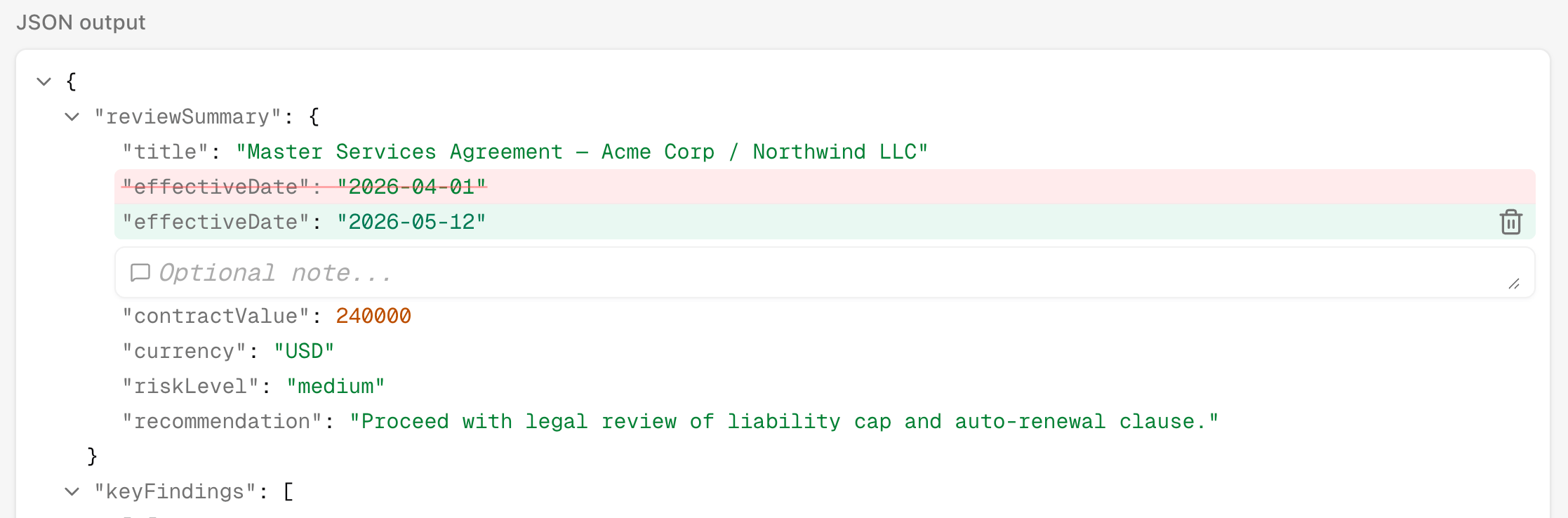 When the case should become a regression test, use **Save as an example** at the
bottom of the Output panel.
## 5. Use Status As The Fix Queue
Verdict says whether the run was right. Status says what the team should do
next.
Use statuses like this:
* **Open**: needs work.
* **Closed**: fixed or resolved.
* **Won't fix**: known issue, intentionally accepted.
A common pattern is:
1. Mark a bad run **Incorrect + Open**.
2. Fix the workflow prompt, schema, step logic, or agent source.
3. Rerun the same input.
4. Close the original review once the rerun proves the fix.
If the failure is real but out of scope, mark it **Won't fix** and explain why
in the note.
```bash theme={null}
# Close after the fix is verified
eigenpal runs reviews close --note "Fixed in v1.2.3"
# Or explicitly decide not to fix
eigenpal runs reviews update \
--status wont_fix \
--note "Out of scope for this automation"
```
## 6. Rerun The Same Case
After changing the automation, rerun the reviewed case. Reruns keep the original
input but execute the latest selected version, so you can compare before and
after.
From the dashboard, use the run's rerun action. From the CLI:
```bash theme={null}
eigenpal runs rerun --wait
```
Open the new run and check whether the original issue is gone. If the output is
now correct, mark the rerun Correct and close the original review.
## 7. Check Monitoring Again
Return to Monitoring after a few reviewed runs. The **Rolling reviewed
accuracy** chart should improve when fixes work; each point uses the
[rolling window](/concepts/reviews#rolling-window) of most recent reviewed runs
ending at that date. The **Review coverage by period** chart shows whether you
are reviewing enough runs to trust the trend.
When the case should become a regression test, use **Save as an example** at the
bottom of the Output panel.
## 5. Use Status As The Fix Queue
Verdict says whether the run was right. Status says what the team should do
next.
Use statuses like this:
* **Open**: needs work.
* **Closed**: fixed or resolved.
* **Won't fix**: known issue, intentionally accepted.
A common pattern is:
1. Mark a bad run **Incorrect + Open**.
2. Fix the workflow prompt, schema, step logic, or agent source.
3. Rerun the same input.
4. Close the original review once the rerun proves the fix.
If the failure is real but out of scope, mark it **Won't fix** and explain why
in the note.
```bash theme={null}
# Close after the fix is verified
eigenpal runs reviews close --note "Fixed in v1.2.3"
# Or explicitly decide not to fix
eigenpal runs reviews update \
--status wont_fix \
--note "Out of scope for this automation"
```
## 6. Rerun The Same Case
After changing the automation, rerun the reviewed case. Reruns keep the original
input but execute the latest selected version, so you can compare before and
after.
From the dashboard, use the run's rerun action. From the CLI:
```bash theme={null}
eigenpal runs rerun --wait
```
Open the new run and check whether the original issue is gone. If the output is
now correct, mark the rerun Correct and close the original review.
## 7. Check Monitoring Again
Return to Monitoring after a few reviewed runs. The **Rolling reviewed
accuracy** chart should improve when fixes work; each point uses the
[rolling window](/concepts/reviews#rolling-window) of most recent reviewed runs
ending at that date. The **Review coverage by period** chart shows whether you
are reviewing enough runs to trust the trend.
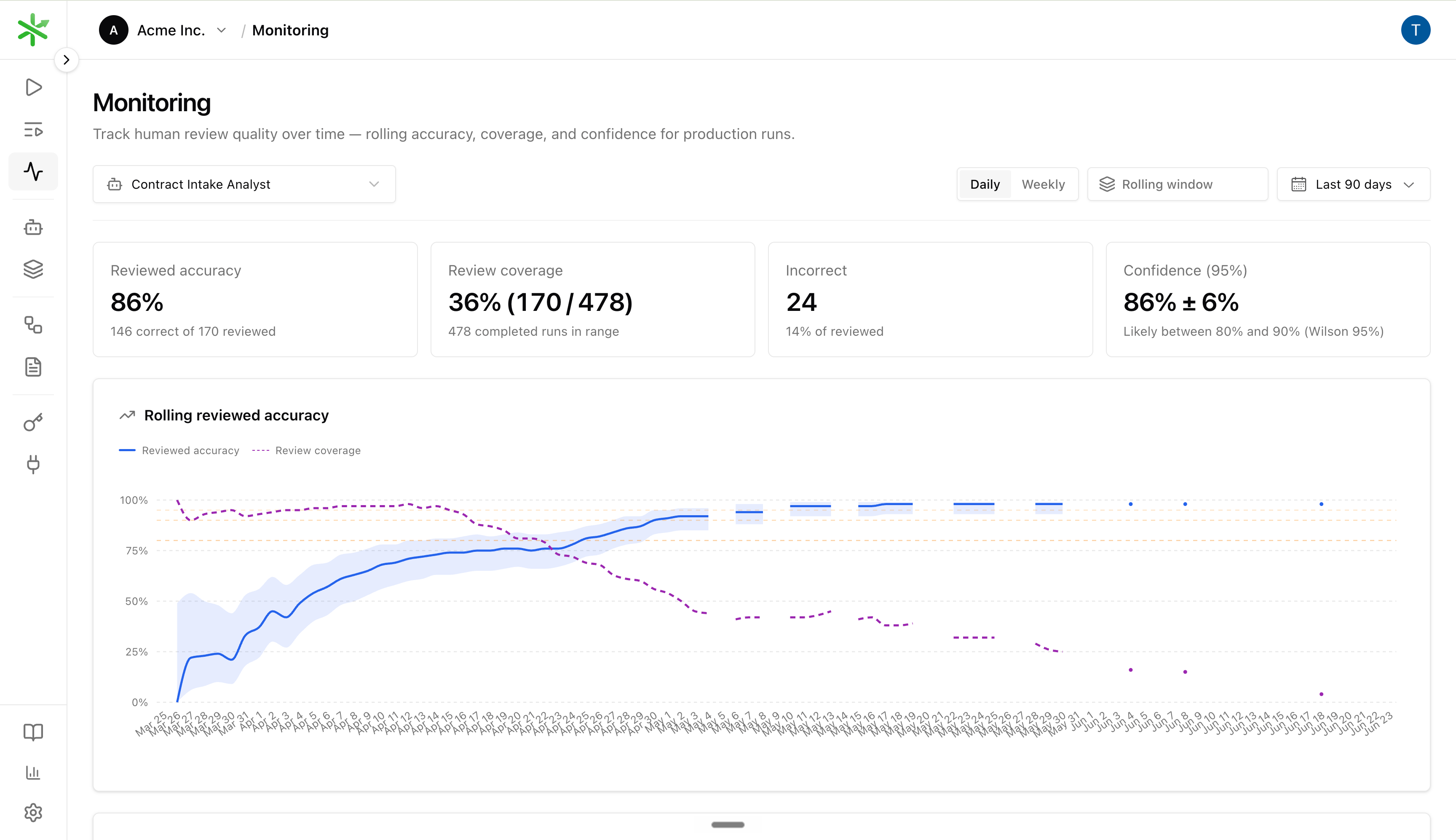 Watch these signals:
* **Accuracy rising**: fixes are improving production quality.
* **Coverage falling while accuracy is still low**: you may be under-sampling;
review more runs before trusting the trend.
* **Coverage falling while accuracy is stable**: often healthy — see
[Sampling](/concepts/reviews#sampling).
* **Many Incorrect reviews**: prioritize fixes or add dataset coverage.
* **Many Unreviewed runs**: review a larger sample before trusting accuracy.
* **Many Nits**: reviewers are leaving feedback, but not making quality calls.
## Recommended Team Habit
For a new automation, review most completed runs until the failure modes are
understood. As quality stabilizes, lower the sampling rate gradually and use
Monitoring to confirm accuracy holds. See [Sampling](/concepts/reviews#sampling)
for the pattern — improved score often means you can review fewer runs without
losing confidence.
When you find a serious issue, do not only close the review. Add the corrected
case to the dataset and run an experiment so future versions cannot silently
regress. See [Eval-first development](/guides/eval-first-development) for that
loop.
Watch these signals:
* **Accuracy rising**: fixes are improving production quality.
* **Coverage falling while accuracy is still low**: you may be under-sampling;
review more runs before trusting the trend.
* **Coverage falling while accuracy is stable**: often healthy — see
[Sampling](/concepts/reviews#sampling).
* **Many Incorrect reviews**: prioritize fixes or add dataset coverage.
* **Many Unreviewed runs**: review a larger sample before trusting accuracy.
* **Many Nits**: reviewers are leaving feedback, but not making quality calls.
## Recommended Team Habit
For a new automation, review most completed runs until the failure modes are
understood. As quality stabilizes, lower the sampling rate gradually and use
Monitoring to confirm accuracy holds. See [Sampling](/concepts/reviews#sampling)
for the pattern — improved score often means you can review fewer runs without
losing confidence.
When you find a serious issue, do not only close the review. Add the corrected
case to the dataset and run an experiment so future versions cannot silently
regress. See [Eval-first development](/guides/eval-first-development) for that
loop.